
Know what is on the shelf, before you need it.
Track urns, keepsakes and packaging from receiving to the order that uses them. Stock goes down when a case is completed, low-stock items surface on their own, and stock takes turn every difference into an auditable adjustment.
Real Angelpaw screens from a demo care center.
Four actions keep the numbers honest.
Every change to on-hand stock comes from a clear source, so you can always see why a number moved.
Purchase order
Receiving a PO adds the received quantity to the selected warehouse and keeps the PO-to-receipt trail.
Direct receiving
Adds stock without a PO, for opening balances, small deliveries or documented corrections.
Completed case
Completing an order consumes the tracked items on it. Intermediate stages never double-count.
Stock take
Compares expected with the physical count and posts the difference as an adjustment.
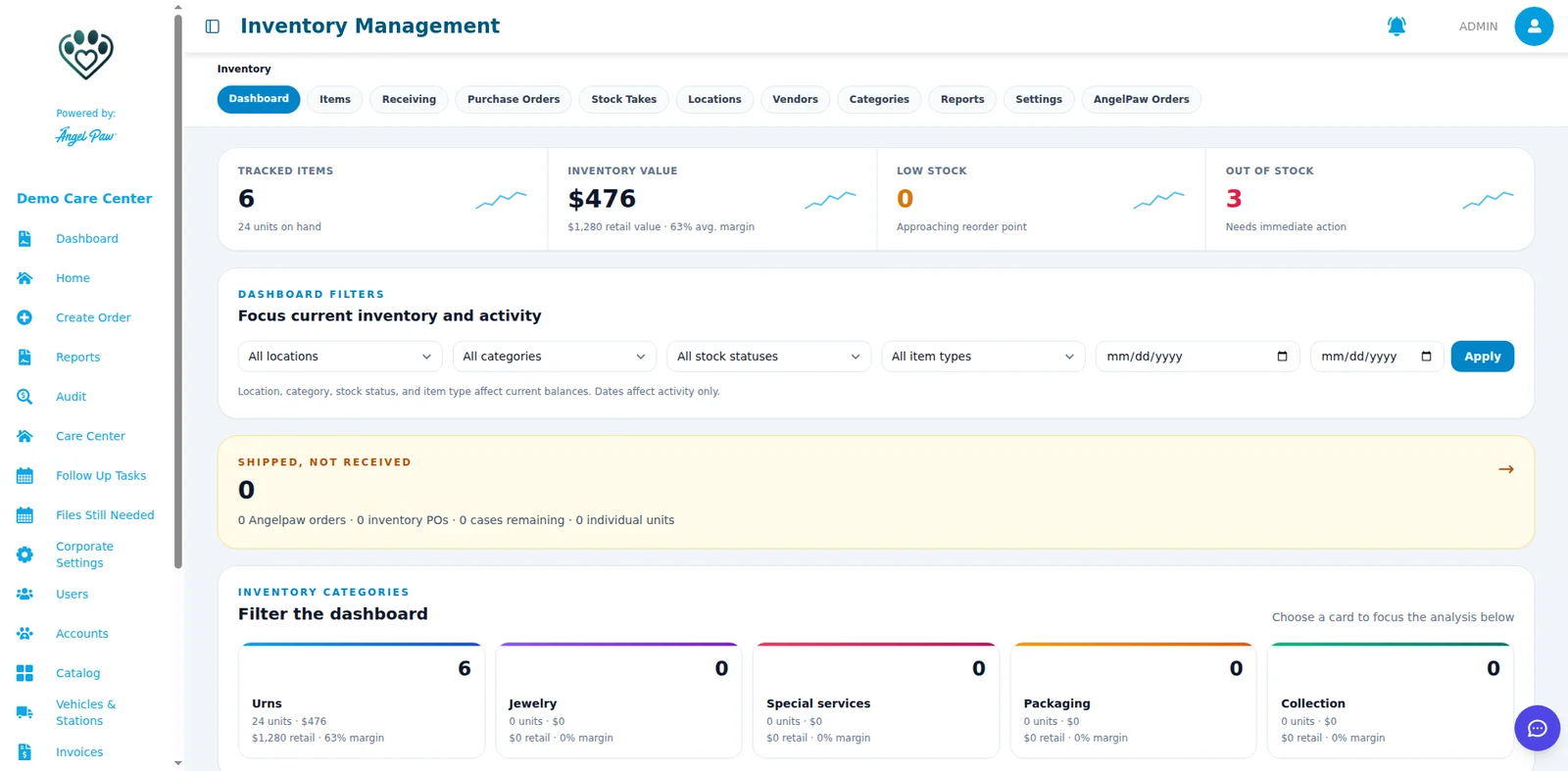
The whole stockroom on one dashboard.
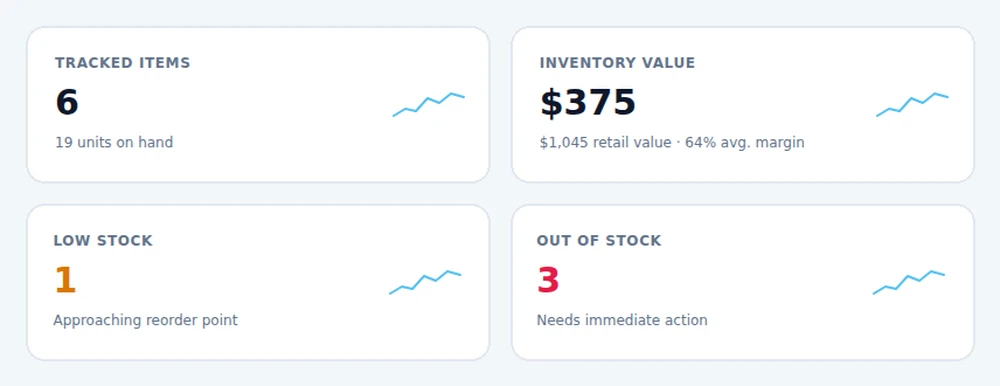
Tracked items, inventory value with retail value and margin, low stock and out of stock sit at the top. Filter by location, category, stock status and item type, and drill into categories like urns, jewelry and packaging.
- Low stock: items approaching their reorder point
- Shipped, not received: orders and POs still in transit
- Category cards with units, value and margin
Order, receive, use, count, reconcile.
The full stock cycle, shown in a demo care center.
Order from your provider
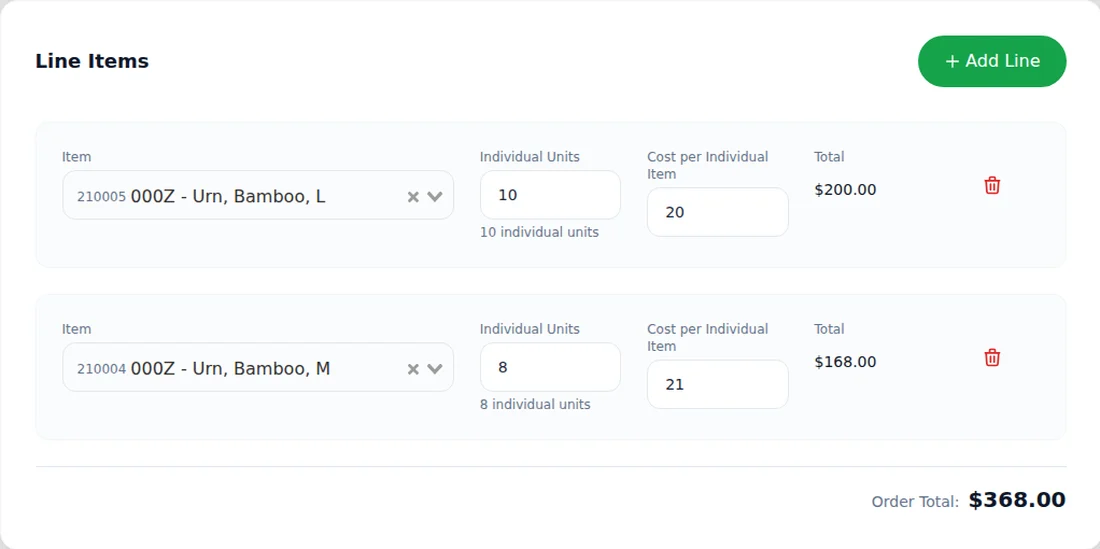
Create a purchase order for a provider and warehouse, add tracked items with quantities and cost per item, and submit it. The PO records what was ordered before anything is added to stock.
- Line items with unit cost and total
- Provider and warehouse on every PO
- Order total calculated for you
Count what actually arrived
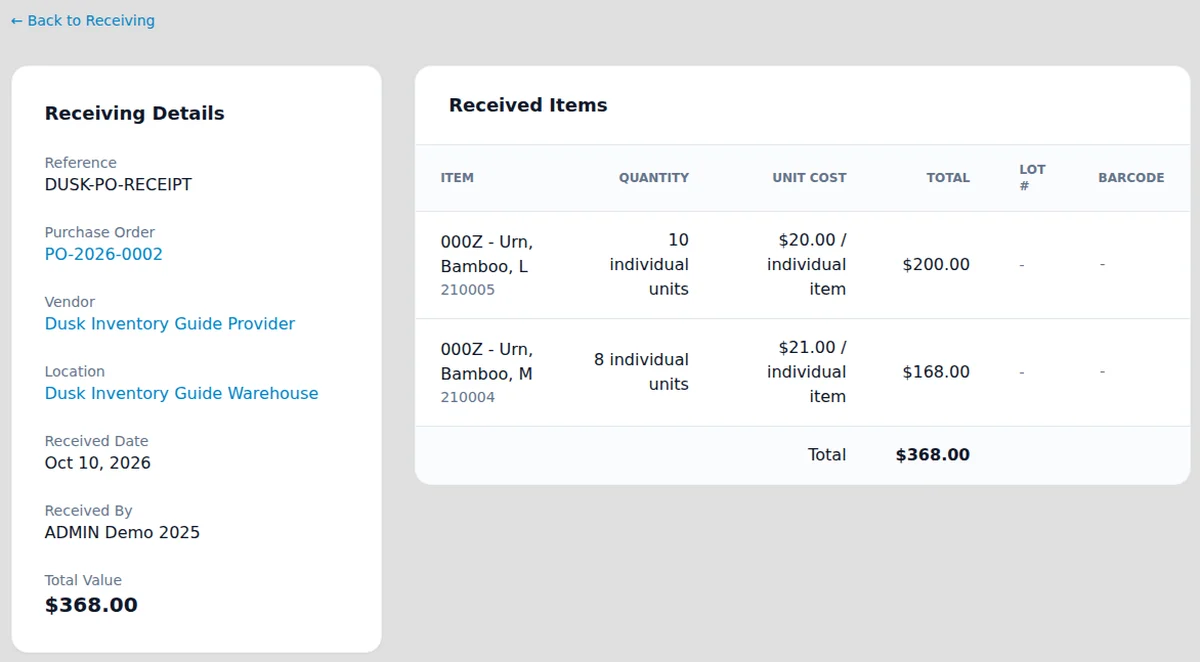
Open receiving, verify the actual quantities and complete the receipt. Completing it adds the accepted quantities to on-hand stock and updates the PO status.
- Receiving details linked to the PO
- Unit cost and total value recorded
- Audit log on every receipt
Every unit traced to an order
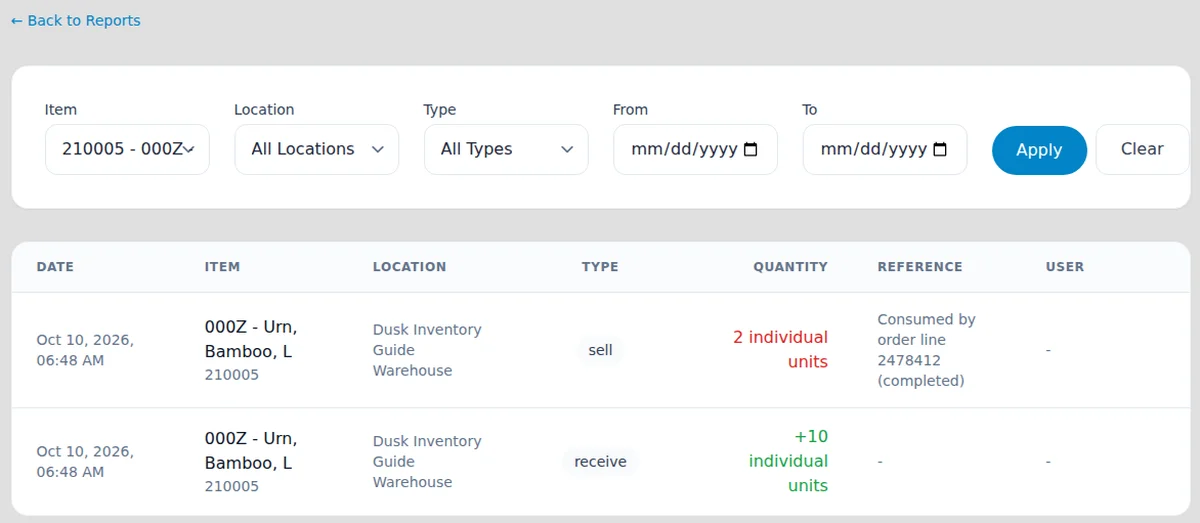
When a case reaches Completed, the tracked items on it are consumed. The movement report shows the item, location, quantity, transaction type and the order line that used it.
- Negative entries for usage, positive for receiving
- Filter by item, location, type and dates
- The order reference on every usage entry
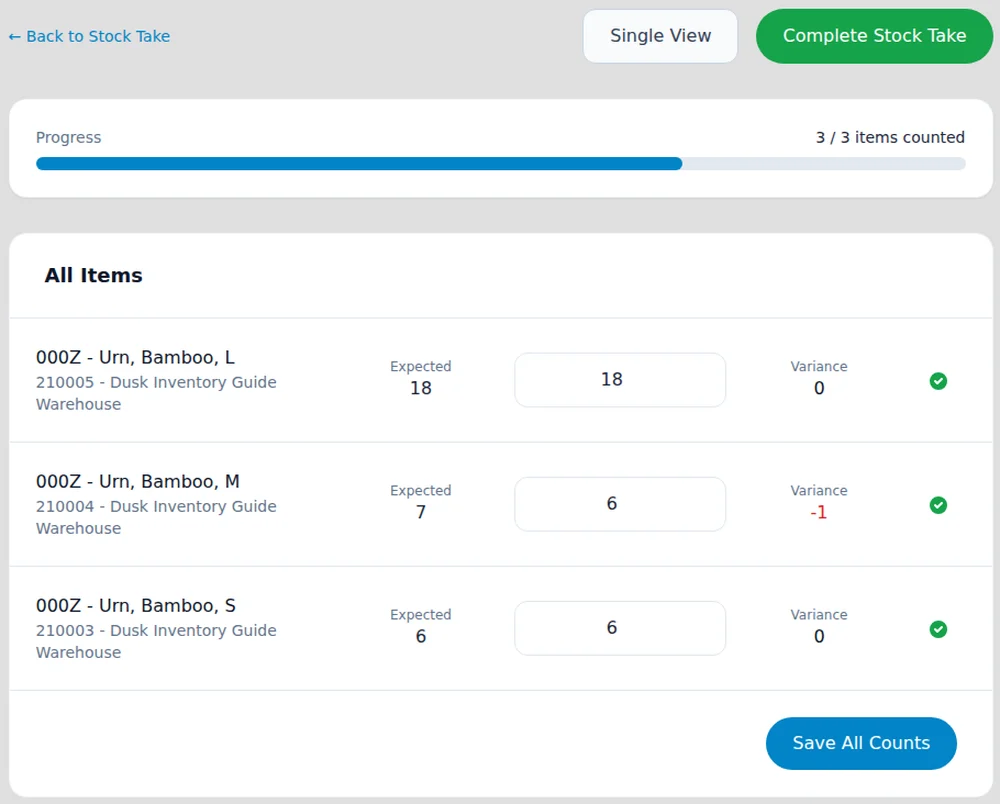
Count the shelf, side by side
Create a stock take for a warehouse and enter the physical count for each item. Expected and counted quantities sit next to each other, with the variance shown as you type.
- Progress bar while you count
- Variance per item before you complete
- Save all counts, then complete
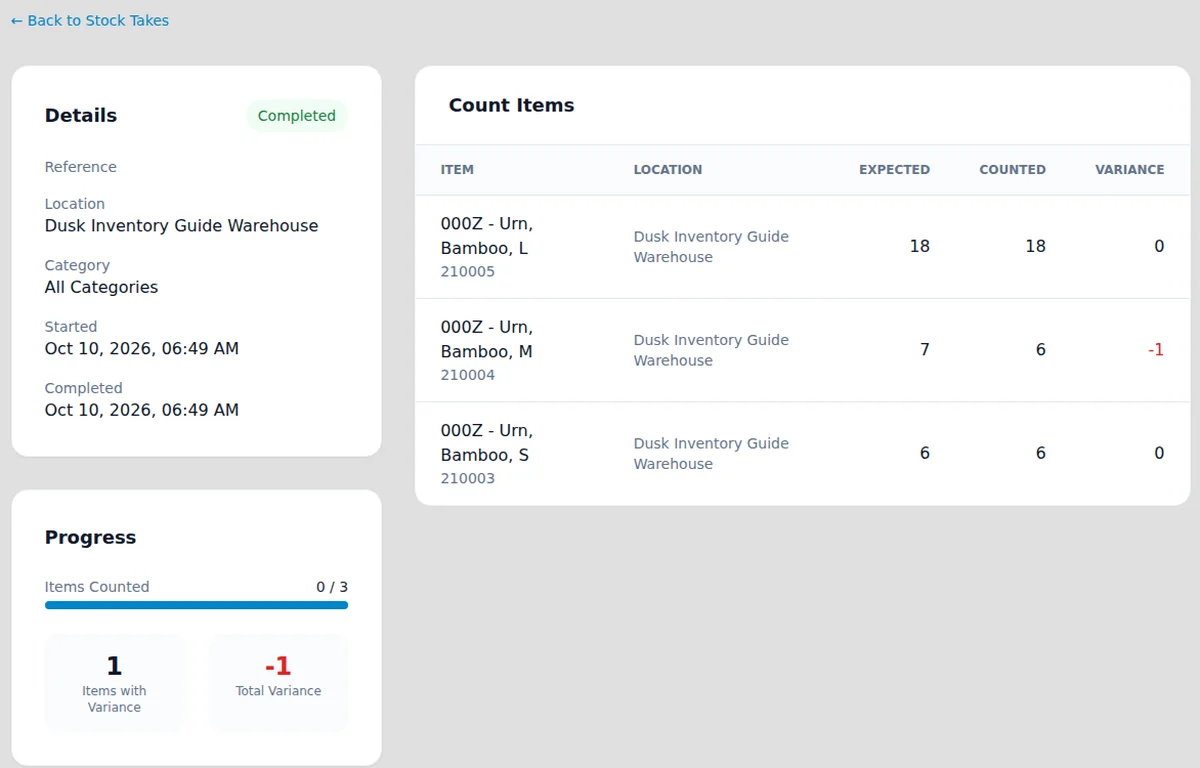
Differences become adjustments
Completing the stock take documents the variance and posts it as an adjustment, so discrepancies are explained instead of hidden in receiving history.
- Items with variance and total variance
- Started and completed times on the record
- Count items per location
Real Angelpaw screens from a demo care center.
Low stock turns into a purchasing queue.
Set a reorder point and a reorder quantity on each item. When on-hand stock falls to the reorder point, the item appears in the low-stock area, and the reorder quantity is the suggested amount to buy.
Reorder point
Decides when an item needs attention.
Reorder quantity
The preferred amount for the replenishment PO.
Back to normal
Once the PO is received, on hand goes up and the item leaves low stock.
Turn on tracking where it counts.
Services are not inventory, so only physical, countable items go into the count. Three steps and you are ready to receive.
Track Inventory
Turn it on for urns, keepsakes, packaging and other physical items in the Catalog.
Provider
Create the provider that appears on your purchase orders.
Warehouse
Add at least one active warehouse or location where quantities are held.
Fewer surprises on the shelf.
With receiving, usage and counts in one place, your team can see what is running low before a family is waiting on it.

Common questions
Which items should be tracked?
Physical, countable items such as urns, keepsakes and packaging. Services are not inventory.
When is stock taken out of inventory?
When the case reaches Completed. Moving through intermediate stages does not double-consume stock.
Can we add stock without a purchase order?
Yes. Direct receiving adds stock without a PO, for opening balances, small ad-hoc deliveries or corrections supported by paperwork.
How do low-stock alerts work?
Each item has a reorder point and a reorder quantity. At or below the reorder point, the item shows in the low-stock area of the Inventory dashboard.
Does inventory sync to our accounting system?
Real-time inventory tracking from Angelpaw to the accounting system is not supported. Invoices and payments do sync.