
Every pickup and return, on the record.
The Angelpaw Driver App gives your drivers their route, their stops and every pet to collect or return, with scans and digital signatures that update tracking for pet parents, vets and your care center. Messaging keeps vet teams and your crematory in direct contact.
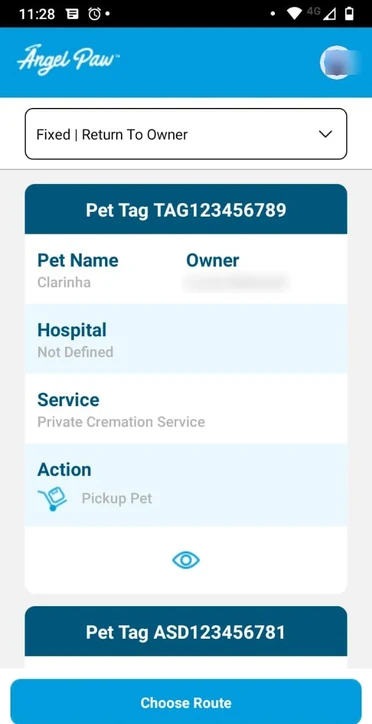
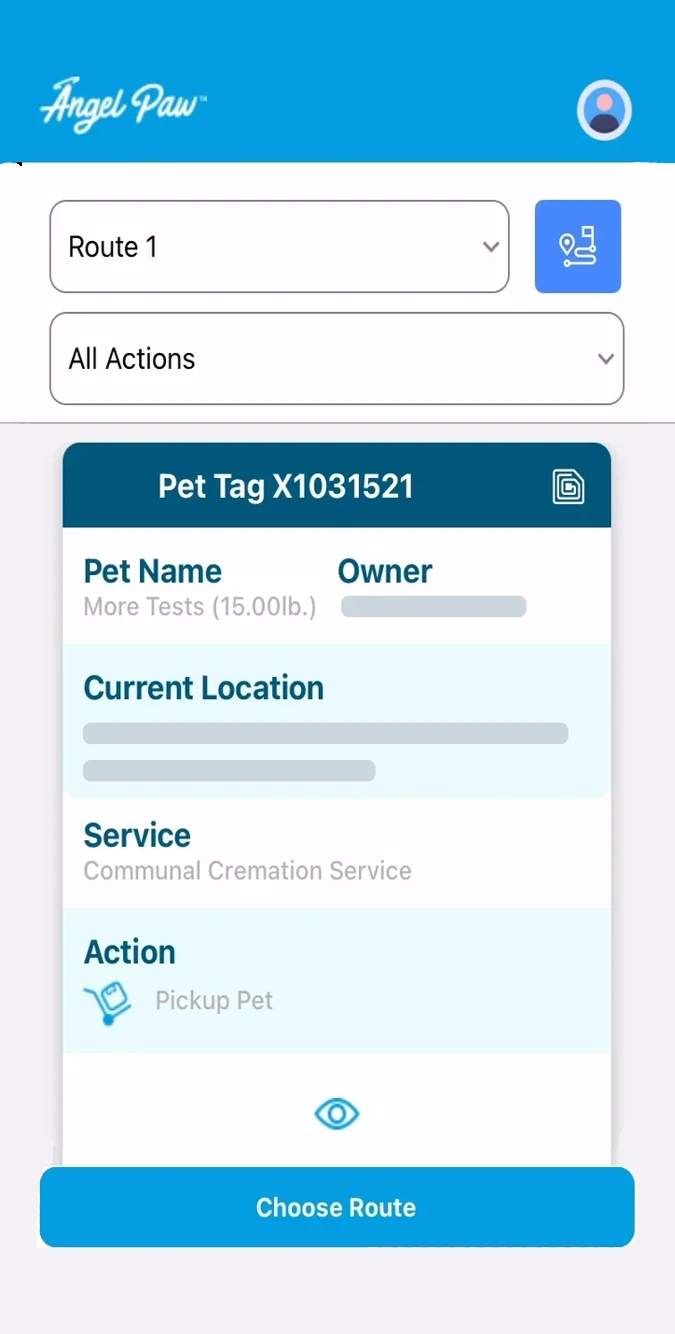
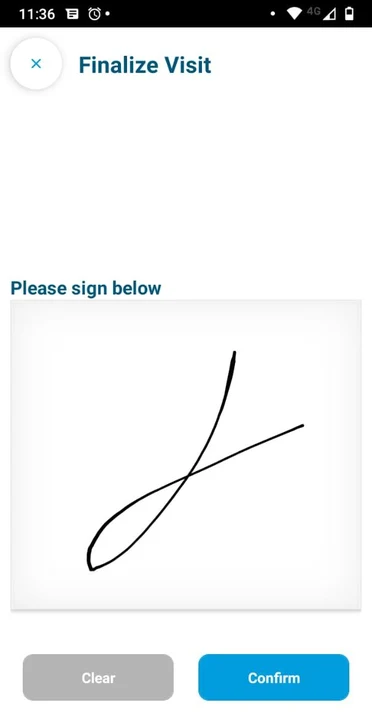
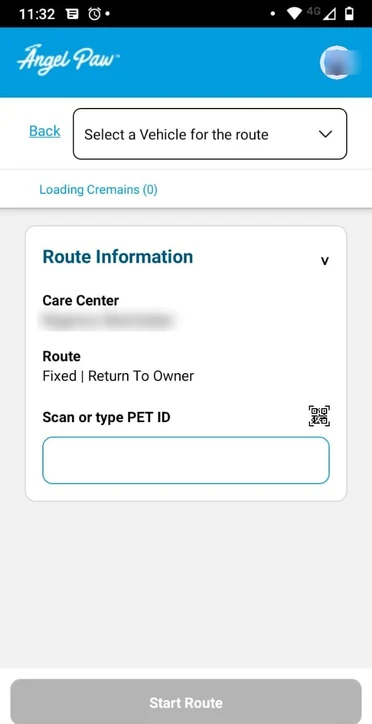
Real Driver App screens with test data. Personal details are blurred.
From the first stop to check-in.
Drivers sign in with their own Angelpaw user, so every action is tied to the person who made it.
Choose a route
See every order on it, with pet tag, pet name, hospital, service and action.
Load the vehicle
Pick the vehicle and load cremains ready for return by scanning or typing pet IDs.
Visit each stop
Pick up pets or return cremains. Cannot pickup leaves an order for the next run.
Sign to finalize
A digital signature confirms the driver was there and what changed hands.
Check in
Finalize the route and move every pet picked up to the check-in station.
Built for the road, connected to the floor.
Real screens from the Driver App guide, plus the newest addition: adding waiting pets to a started route.
Every order on the route
After choosing a route, the driver sees each order with the pet tag, pet name, owner, hospital, service and the action needed, such as Pickup Pet.
- Tap the eye icon for who placed the order, time stamps, special instructions and items
- Pickups and returns on the same route
Load cremains for return
The driver selects the vehicle and loads the cremains staged for return, by scanning the QR code or typing the pet ID.
- Route information at a glance
- Loading counter shows what is on board
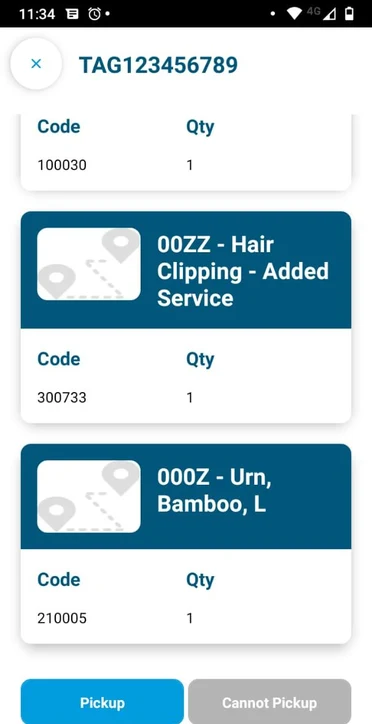
Pickup, or cannot pickup
At each stop the driver scans or types the pet ID, checks the order details and taps Pickup. Cannot Pickup leaves the order at the location for a later run.
- Pickup moves the pet to the vehicle
- Tracking updates for pet parents, vets and the crematory
A signature at every stop
Finalizing a visit asks for a digital signature, confirming the driver went to the location and picked up pets or returned cremains.
- Signed on the phone
- Recorded with the visit
Straight into the care center
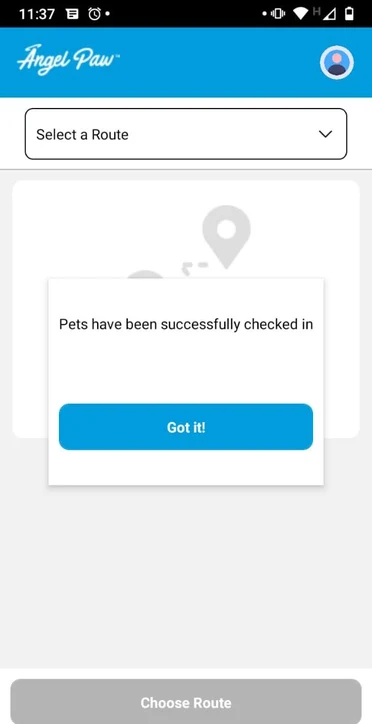
When the route is done, the driver selects the check-in station and finalizes. Every pet picked up is moved to the care center in one step.
- Summary of every pet picked up
- Confirmation once pets are checked in
Pets waiting that are not on the route
On Dynamic Routes, a driver who finds extra pets waiting at a clinic or address can add them to the started route instead of calling the office.
- Search the place by name
- Pets that cannot be added show the reason
- Adding pets sends no messages and adds no charges
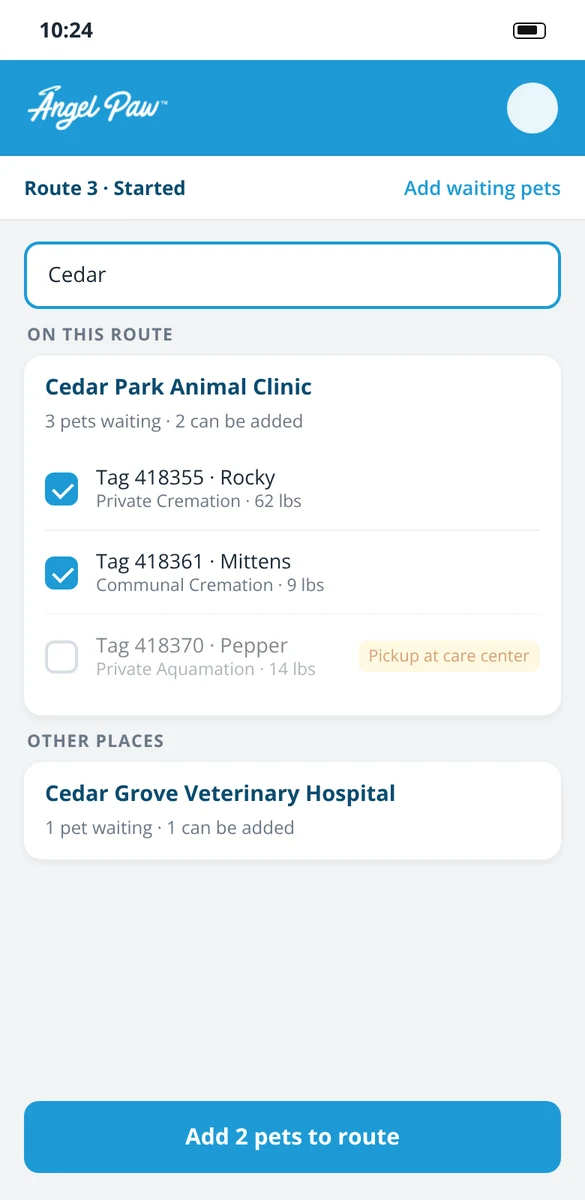
Tabs 1 to 5: real Driver App screens with test data. Tab 6: illustrative mockup with fictional data.
Every kind of run, in the same app.
Drivers work the same way on every route type: choose the route, load, visit each stop and sign. What changes is how the stops are planned.
Static routes
Predefined vet runs the van follows regularly, so drivers know their routine clinic stops before they leave.
Dynamic routes
Stops are added as orders come in from the phone, e-commerce or vet partners, based on where your vans are. Drivers can also add pets waiting at a stop to a started route.
Hybrid routes
Standing vet stops plus the day’s new pickups and returns, on the same run.
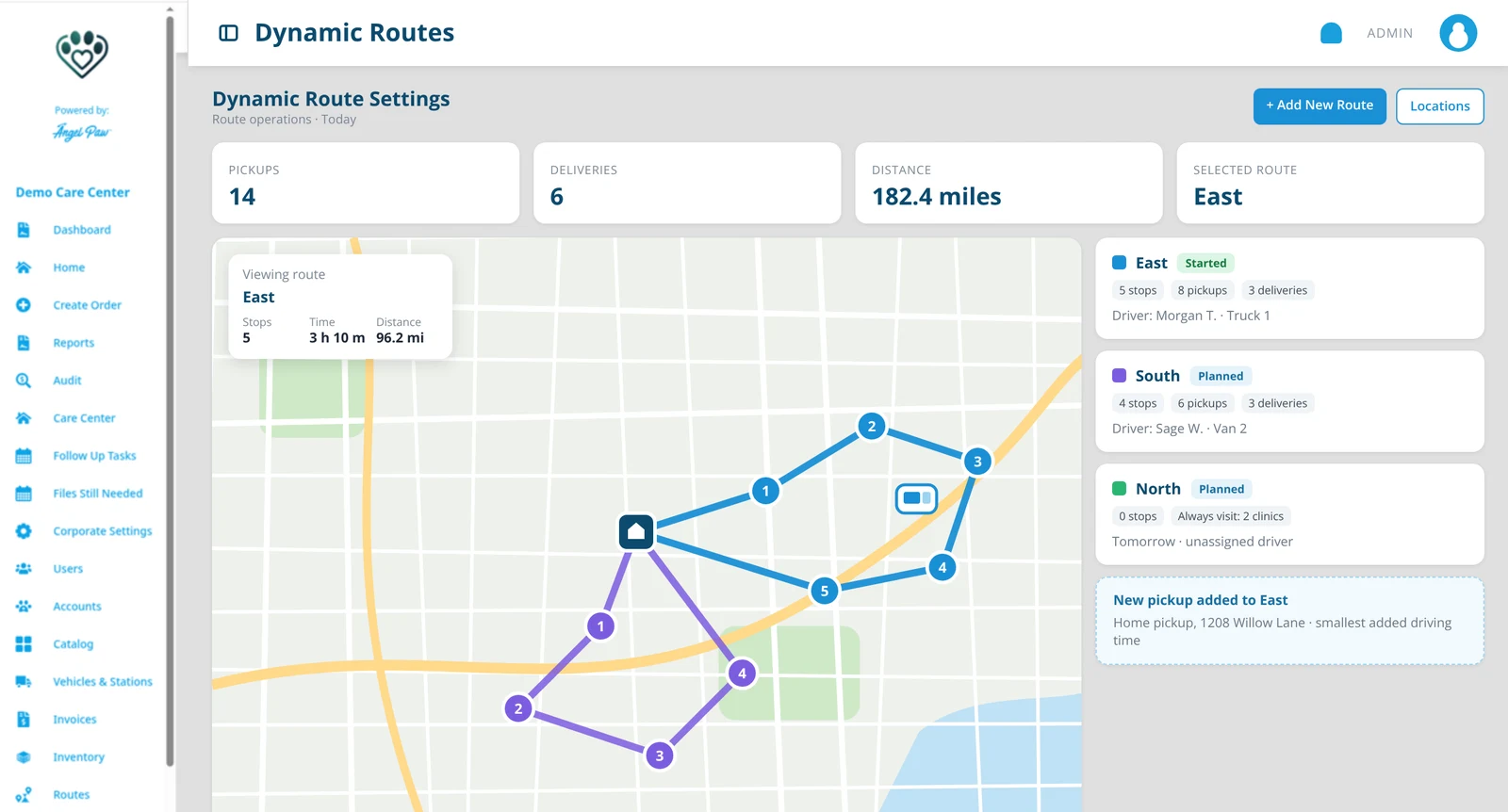
Illustrative mockup based on the Angelpaw Dynamic Routes screen, with fictional routes and addresses.
One scan updates everyone.
When a driver taps Pickup, the pet moves from the location to the vehicle in Angelpaw, and the tracking updates for the pet parent, the veterinary hospital and your care center. No calls, no paper logs.
- Each driver has their own user
- Every pickup, return and signature is time-stamped
- Pets go straight into the check-in station
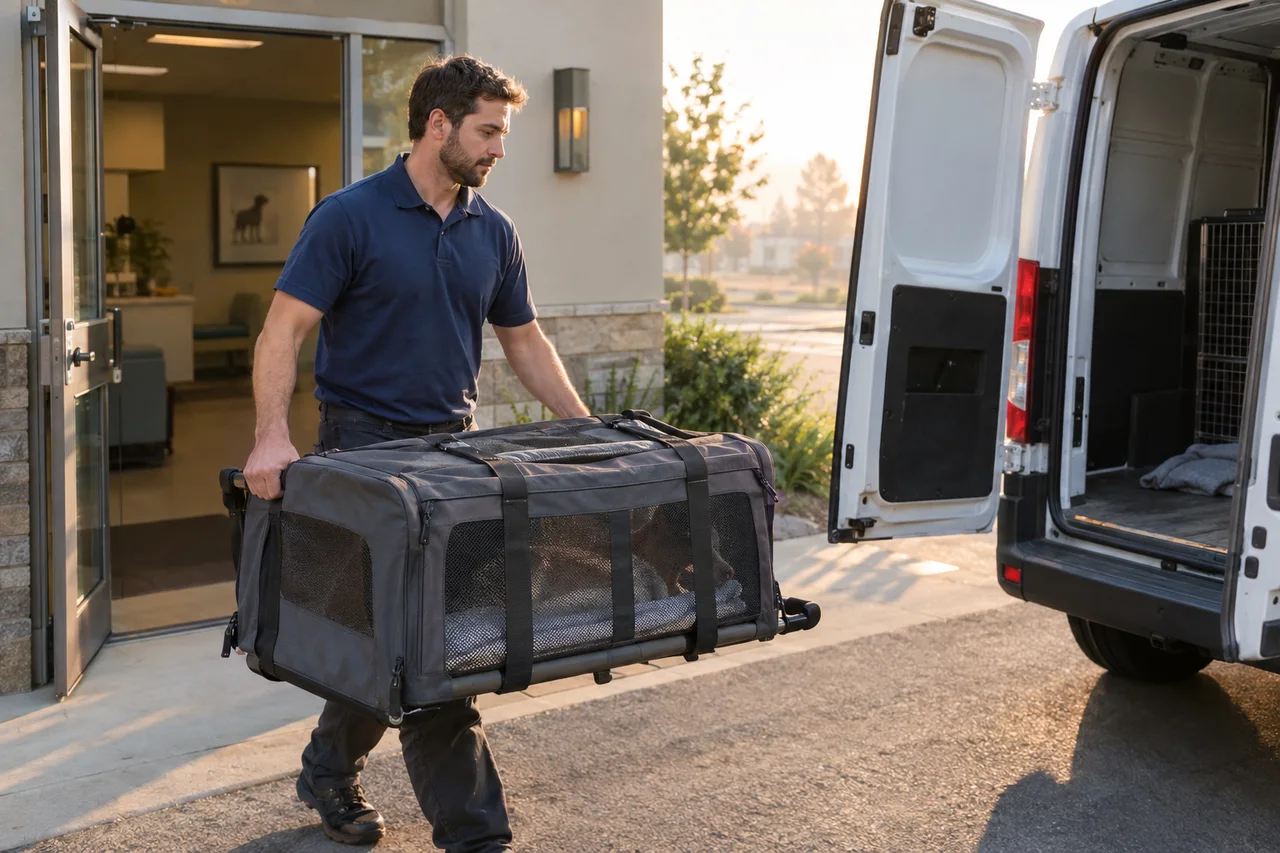
Record what happened, with photos.
Drivers and floor staff can add short internal notes on a pet from the Driver App or the Care Center app, with photos as evidence.
Notes by category
General, Pickup, Tag ID, Belongings, Pet condition, Paperwork, Station or equipment, or Other.
Evidence photos
Up to 5 photos per evidence note. Hidden location and camera details are removed before storage.
Always internal
Veterinary clinics and pet parents never see Pet Notes, and adding one sends no notifications.
In the order history
Every note shows in the order’s Internal Notes with the source app, category and stop.
Weak signal safe
Photos upload one at a time and retries do not create duplicates.
Android and iOS
Driver App for Android, Driver App 2.0 for iOS and the original Driver App for iOS.
A direct line between vet teams and your crematory.
The Communications module in the Veterinarian Portal is a messaging system between veterinary staff and the crematory, so questions about an order get answered where the order lives.
- 1Vet staff message the crematory from their portal
- 2Conversations listed with participants
- 3Families are kept informed by automatic notifications
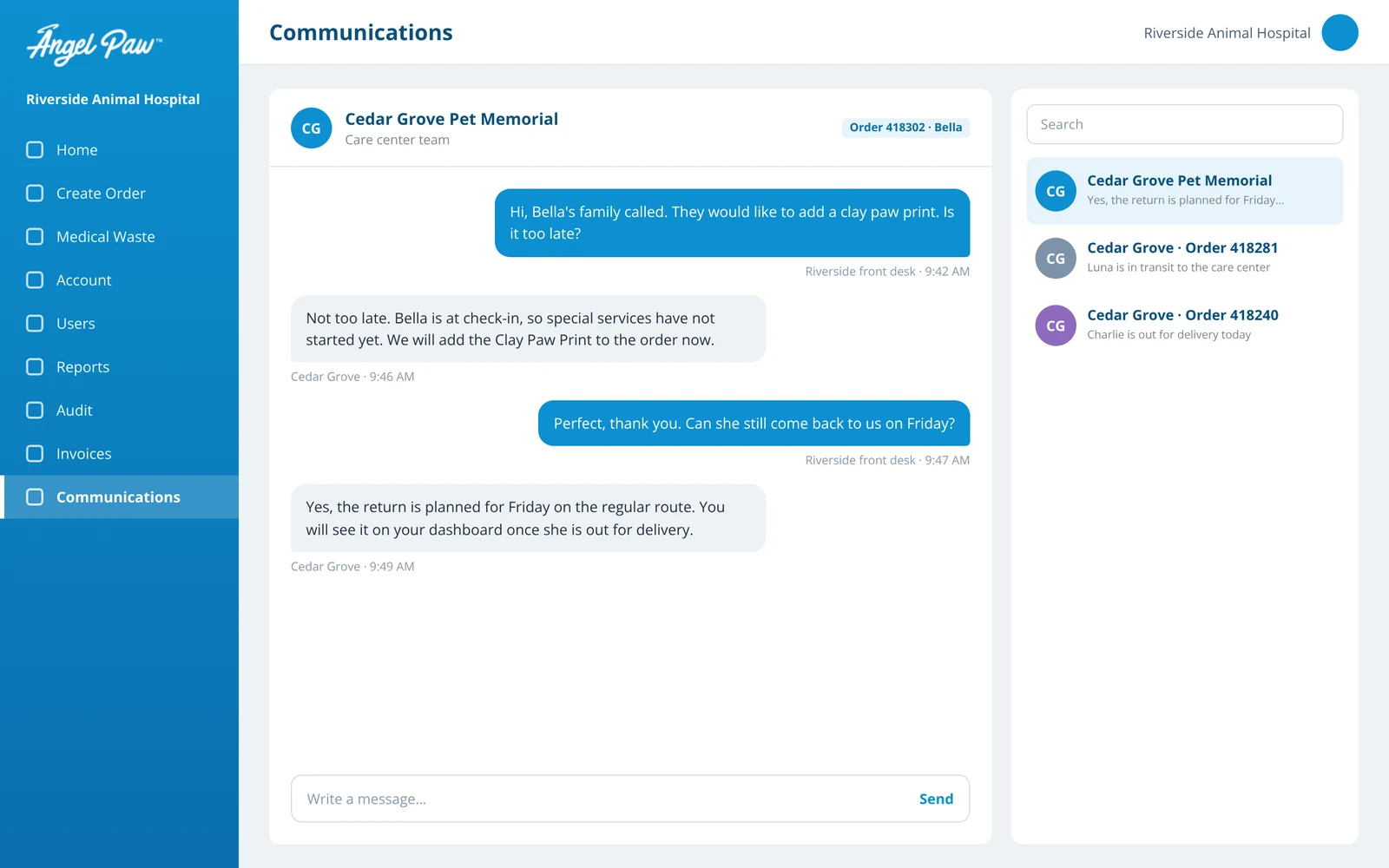
Illustrative mockup with fictional names, based on the Communications module.
Common questions
Which phones does the Driver App run on?
Android and iOS. There is a Driver App for Android, Driver App 2.0 for iOS and the original Driver App for iOS. Drivers sign in with their Angelpaw staff login.
How does a driver identify each pet?
By scanning the pet’s QR code or typing the pet ID, at loading and at each stop.
What happens if a pet is not ready?
The driver taps Cannot Pickup. The order stays at the location, without changing its tracking, until it can be picked up on a later run.
Can drivers add pets that are not on their route?
Yes, on Dynamic Routes. On a started route, a driver can search the clinic or address and add the pets waiting there. Pets that cannot be added, for example because of a pickup hold, are listed with the reason.
Who sees Pet Notes?
Only your care center staff. Notes and evidence photos appear in the order’s Internal Notes and Attachments; veterinary clinics and pet parents never see them.
How do vets reach the crematory?
Through the Communications module in the Veterinarian Portal, a messaging system between vet staff and the crematory.